If you want to set up a smart home with Alexa, the good news is that the process is mostly the same no matter which devices you own. You need one Alexa speaker or display, the Alexa app on your phone, and a reliable Wi-Fi network.
This guide walks you through the full setup in the order that causes the fewest headaches. It is based on Amazon’s own setup documentation, manufacturer instructions, and common issues that show up in verified customer feedback.
You can finish the basics in an afternoon. After that, you can keep adding devices whenever you like.
What You Need Before You Start
Gather a few things first so you do not get stuck halfway through.
- A smartphone or tablet running iOS or Android
- A free Amazon account
- A 2.4 GHz or dual-band Wi-Fi network (many smart plugs and bulbs only connect to 2.4 GHz)
- At least one Alexa device, such as an Echo speaker or Echo Show
- The smart devices you want to connect, plugged in or installed
Many smart home gadgets, especially cheaper plugs and bulbs, cannot join a 5 GHz-only network. If your router combines both bands under one name, your phone may try to use 5 GHz during setup. Temporarily moving your phone to the 2.4 GHz band, or splitting the network names, often fixes connection errors.
Step 1: Set Up Your Alexa Speaker
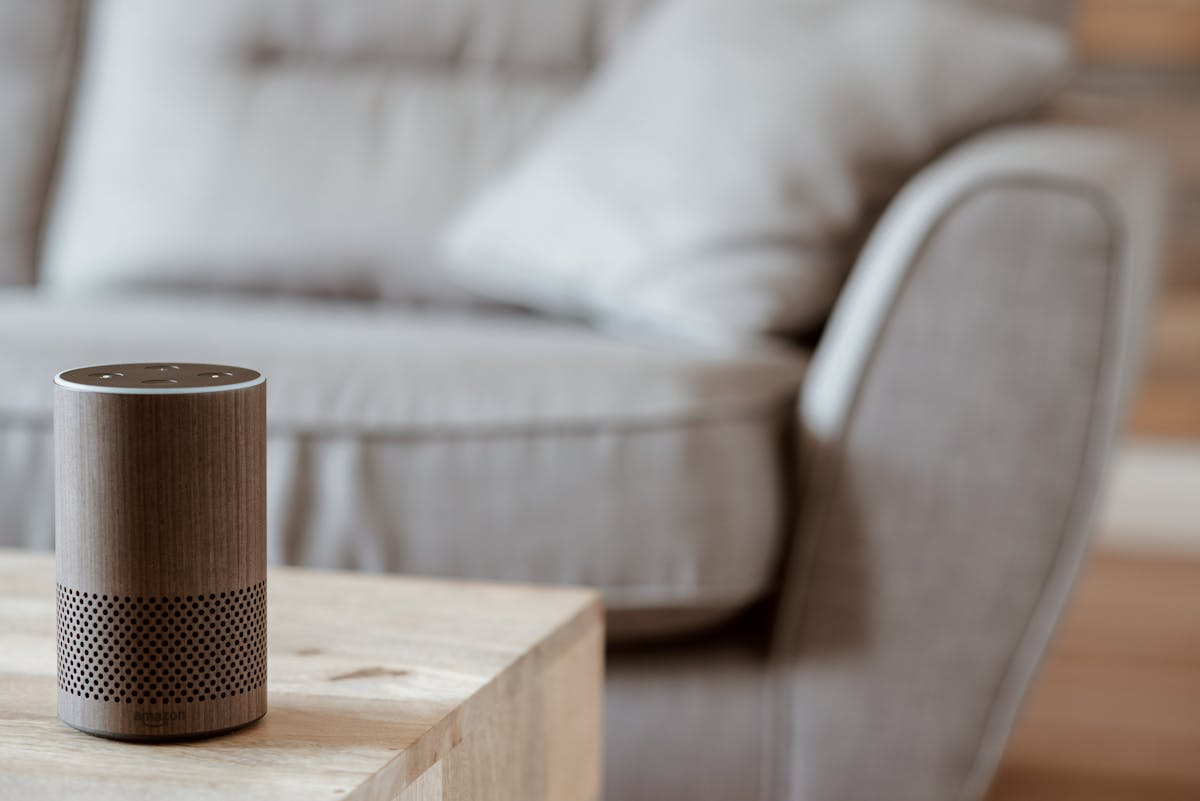
Download the Alexa app from the App Store or Google Play and sign in with your Amazon account. Plug in your Echo device and wait for the light ring to signal that it is ready for setup.
Open the app, tap Devices, then the plus icon, then Add Device and choose Amazon Echo. Follow the prompts to pick your Wi-Fi network and give the speaker a room name.
If you do not own a speaker yet, a small, widely reviewed model is plenty for a first smart home. The Echo Dot is the usual starting point because it is compact and has years of positive customer feedback behind it.
Amazon Echo Dot (5th Gen)
- Compact speaker with full Alexa voice control for music, timers, and smart home commands
- Setup runs through the free Alexa app, which finds the speaker and walks you through Wi-Fi
- Matter support helps newer smart devices connect with fewer steps
- Small enough to place in a bedroom, kitchen, or office without taking up space
As an Amazon Associate, HomeTechVerdict earns from qualifying purchases. Tap through for the current live price on Amazon.
Step 2: Create Rooms and Groups
Before you add a single device, think about how you want to talk to your house. In the Alexa app, you can assign every speaker and device to a group such as Living Room, Bedroom, or Kitchen.
Groups matter because they make commands shorter. When you say “turn off the lights” to a speaker in the bedroom, Alexa can limit the command to the lights in that room if they are grouped.
Pick simple names you can say without thinking. “Desk lamp” works better than “Lamp number two upstairs.”
Step 3: Add Your First Smart Device
Start with something simple, like a smart plug or a smart bulb. Plug it in or screw it in, then open the Alexa app and tap Devices, the plus icon, and Add Device.
Alexa lists device types and brands. Pick yours and follow the steps. Many devices connect directly through the app, while others ask you to enable a skill and sign in to the manufacturer’s account.
If your device shows a Matter logo, look for the Matter option in the same menu. You will usually scan a code on the device or its packaging, and the app handles the rest.
After the device is added, assign it to a room group and give it a clear name. Then test it by speaking to your Echo: “Alexa, turn on the desk lamp.”
If you want more ideas for a first purchase, our guide to the best smart plugs for Alexa covers popular options.
Step 4: Fix Common Setup Problems
Most failed setups come down to a short list of causes.
Wrong Wi-Fi band. Move your phone to 2.4 GHz during setup if the device cannot find the network.
Weak signal. Set up the device near your router first, then move it to its final spot.
Outdated firmware or app. Update the manufacturer’s app and the Alexa app before you try again.
Device already paired. If you used the device before, hold its reset button until the light blinks, then start over.
When all else fails, remove the device in the app and add it again. A clean start often works better than repeated retries.
Step 5: Build Routines That Save Time
Routines are where a smart home starts to feel useful. A routine ties one trigger to one or more actions.
In the Alexa app, tap More, then Routines, then the plus icon. Choose a trigger, such as a voice phrase, a time of day, or a sunset schedule. Then add actions like turning on lights, adjusting a plug, or playing a news briefing.
Good first routines include:
- A “Good morning” routine that turns on kitchen lights and reads the weather
- A “Goodnight” routine that turns everything off at once
- A sunset schedule that switches on a porch or living room lamp
Keep routines simple at first. You can always add more actions later.
Step 6: Expand Your Smart Home Over Time
Once your first few devices work reliably, you can branch into other categories. Many people add a smart lock next, since it fits well into a “Goodnight” routine.
If that sounds useful, see our roundup of the best smart lock for your front door for models that work with Alexa.
Add one category at a time. This makes it easy to spot which device causes a problem if something stops working.
Pros
- The Alexa app walks you through adding each device, so no technical background is needed
- Routines let one voice command or schedule control several devices at once
- Thousands of brands work with Alexa, and Matter support makes new devices easier to add
- You can start with a single speaker and a plug, then grow room by room
Cons
- Wi-Fi coverage problems are the most common reason a new device fails to connect
- Naming devices badly leads to confusing voice commands later
- Some brands still need their own app for advanced features
How to Choose Smart Devices for Alexa
When you shop for new devices, look for a few signals that they will work smoothly with Alexa.
Check for “Works with Alexa.” This label means the manufacturer has built an official integration.
Look for Matter support. Matter is designed to make devices from different brands work together with simpler setup.
Read the Wi-Fi requirements. Confirm whether the device needs 2.4 GHz and whether it requires a separate hub.
Prefer brands with active app updates. Companies that keep updating their apps tend to cause fewer compatibility problems over time.
Our Verdict
Setting up a smart home with Alexa is far less complicated than it looks. Start with one speaker, add a plug or bulb, name things clearly, and build a routine or two. Most problems trace back to Wi-Fi bands, weak signal, or messy device names.
If you are starting from scratch, the Echo Dot (5th Gen) is a sensible first purchase. It is compact, widely reviewed, and easy to expand around.
Check the latest price on Amazon if you are ready to get started.
When you are ready to branch out, pair your setup with a smart lock for your front door or a few smart plugs for Alexa.